
How to Create a Meta Business Portfolio: Step-by-Step Guide for Beginners
If you want to run Facebook and Instagram ads the right way, one of the first things you need is a Meta Business Portfolio.
A lot of business owners skip this step or set it up incorrectly. Then later, they run into problems with ad accounts, page access, pixels, permissions, or even account ownership.
The good news? Setting up a Meta Business Portfolio is actually simple once you know what to do.
In this guide, I’ll walk you through how to create a Meta Business Portfolio step by step, what it is, why it matters, and the common mistakes to avoid before you launch your ads.
What Is a Meta Business Portfolio?
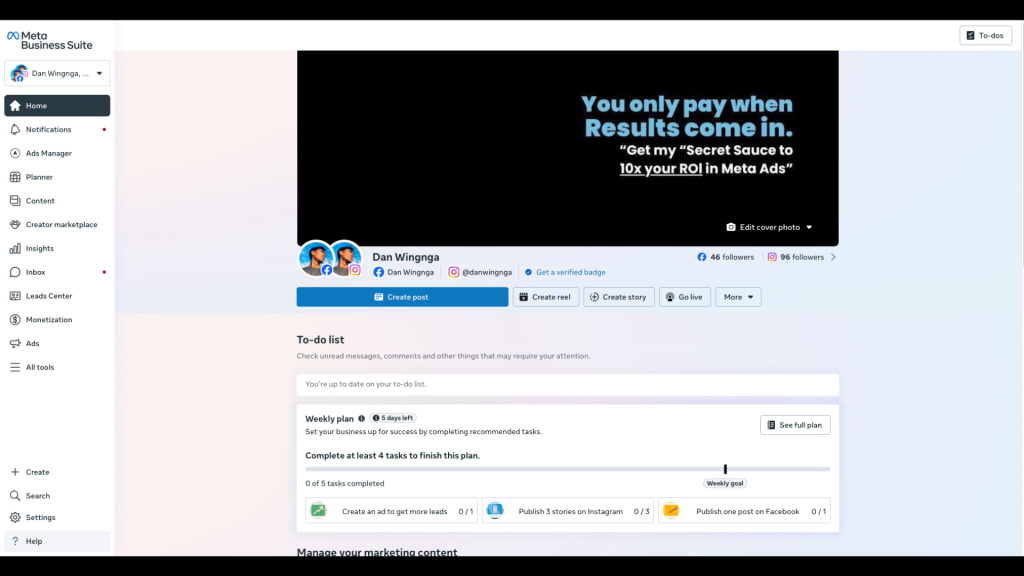
A Meta Business Portfolio is the central place where you manage your business assets across Facebook and Instagram.
Inside it, you can manage things like:
- Your Facebook Page
- Your Instagram account
- Your ad account
- Your Meta Pixel
- Your team members or agency partners
- Your permissions and business settings
If you’ve heard the term Meta Business Manager, that’s basically what many people still call it. Meta has updated the naming, and now it’s often referred to as Business Portfolio inside Meta Business Suite.
So if you see “Business Manager” and “Business Portfolio,” don’t worry — they’re closely related, and many people still use both terms interchangeably.
Why You Need a Meta Business Portfolio Before Running Ads
Before you spend a single dollar on Meta ads, you want your setup to be clean.
Here’s why a Meta Business Portfolio matters:
1. It keeps your business assets organized
Instead of managing everything from your personal Facebook account, you can keep your business assets in one professional place.
2. It makes team access safer
If you work with a media buyer, VA, or agency, you can grant access without sharing your login details.
3. It helps prevent setup issues later
A lot of ad problems happen because pages, pixels, or ad accounts were never properly connected.
4. It gives you more control
You can control who has admin access, who can run ads, and who can view performance.
5. It’s the proper foundation for scaling
If you want to run serious Facebook and Instagram campaigns, you need the right backend setup from the start.
In short, your Meta Business Portfolio is the foundation of your Meta ads system.
What You Need Before You Start
Before creating your Meta Business Portfolio, make sure you have:
- A personal Facebook profile (this is required)
- Your business name
- A business or Google email address
- A Facebook Page (or be ready to create one)
- An Instagram account (optional, but highly recommended)
- Access to your website (for pixel setup later)
How to Create a Meta Business Portfolio (Step-by-Step)
Here’s the exact process.
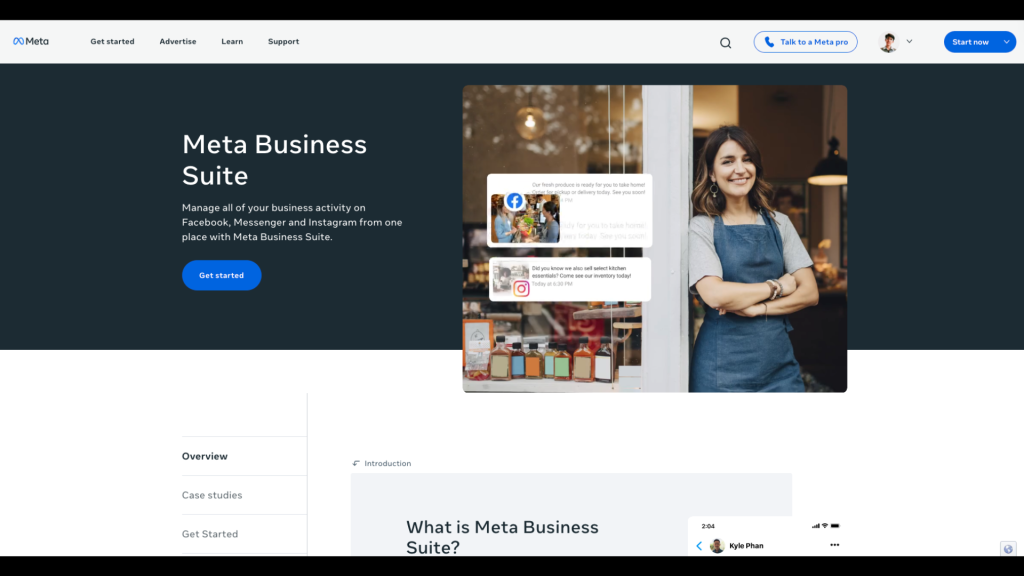
Step 1: Go to Meta Business Suite
Start by visiting:
Log in using your personal Facebook account.
Important:
You must use a personal Facebook profile to create and manage a Meta Business Portfolio. Meta uses your personal profile to verify identity and permissions, but your personal profile stays separate from your business assets.
Step 2: Click “Create Business Portfolio”
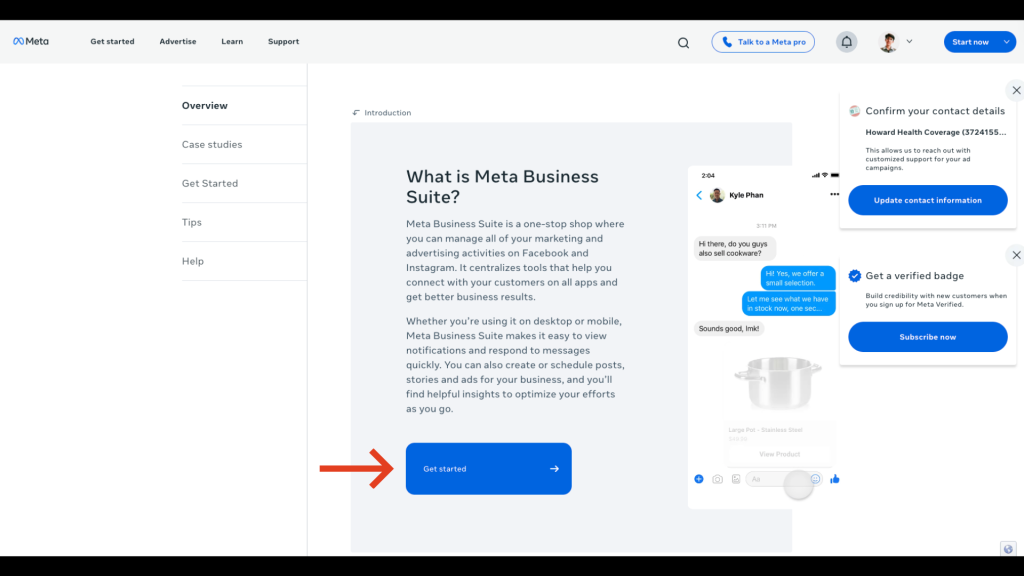
Once you’re inside Meta Business Suite, look for the option to:
- Create Business Portfolio
- or Create Business Account
- or navigate to Business Settings
The exact wording can vary depending on Meta’s latest interface updates, but the process is essentially the same.
Click the option to start creating your business setup.
Step 3: Enter Your Business Details
You’ll be asked to enter basic information such as:
- Business name
- Your name
- Business email address
Use your real business details here.
Pro Tip:
Use a professional business email instead of a personal Gmail if possible. It looks cleaner and makes your setup feel more legitimate if you later work with team members or clients. But, using Gmail is fine.
Step 4: Confirm Your Email Address
Meta may ask you to verify your business email address.
If it does:
- Check your inbox
- Open the verification email
- Confirm your email
This step helps secure your account and complete the setup properly.
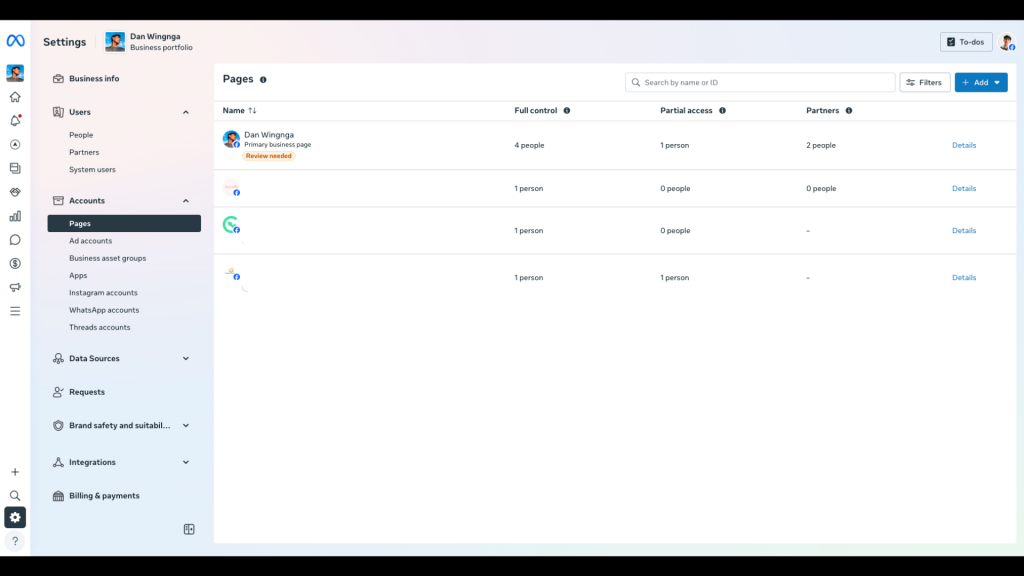
Step 5: Add or Create Your Facebook Page
After your business portfolio is created, the next step is connecting your Facebook Page.
You’ll usually have 3 options:
- Add a Page (if you already own it)
- Request Access to a Page (if someone else owns it)
- Create a New Page
If this is your own business, choose Add a Page.
If you don’t have one yet, create a new page first.
Tip:
Make sure the page is the correct business page and not a duplicate or old page you no longer use.
Step 6: Connect Your Instagram Account
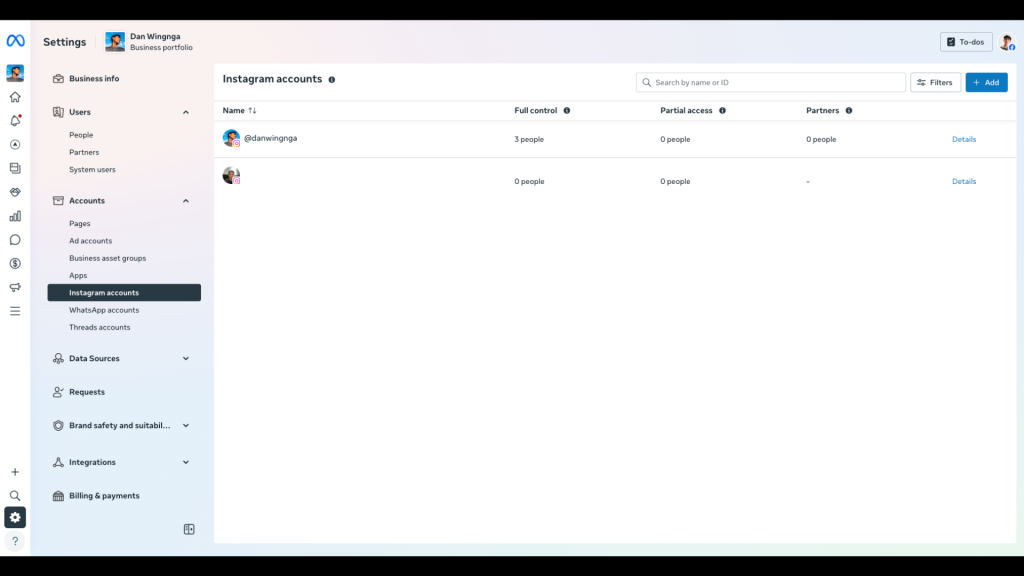
If you plan to run Instagram ads or use Instagram placements, connect your Instagram account now.
To do that:
- Go to Business Settings
- Find Instagram Accounts
- Click Add
- Log in to your Instagram account
This step is optional, but I highly recommend doing it now.
Why? Because if you skip it, you may run into issues later when trying to:
- run Instagram ads
- tag the correct account in ads
- build credibility across placements
- keep your Meta assets fully connected
Step 7: Create or Add an Ad Account
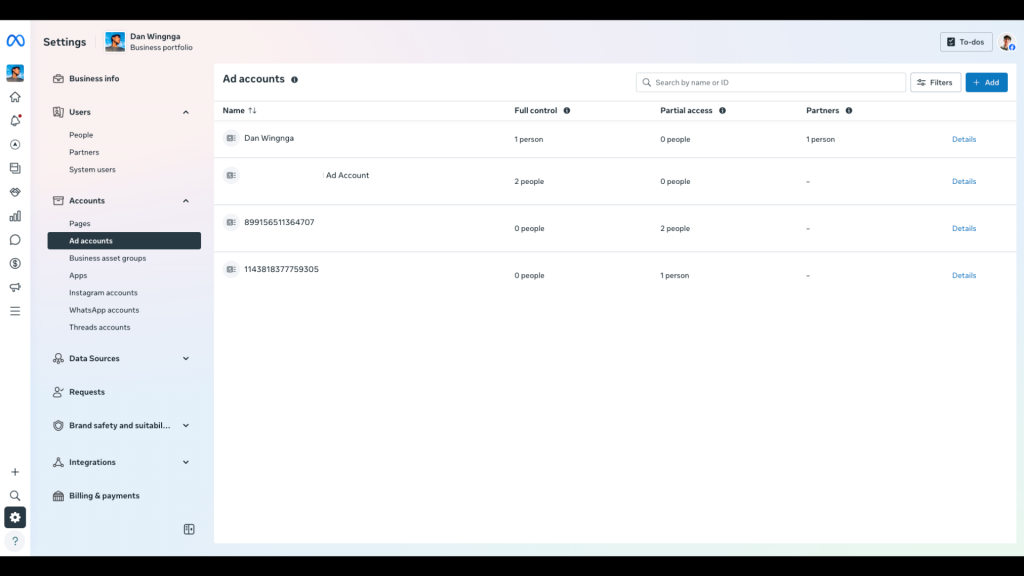
Next, you’ll need an ad account.
Inside Business Settings, go to:
- Accounts
- Ad Accounts
- Click Add
You’ll usually see 3 options:
- Add an existing ad account
- Request access to an ad account
- Create a new ad account
If you’re just getting started, choose:
Create a new ad account
Then set:
- Ad account name
- Time zone
- Currency
Important:
Choose your time zone and currency carefully. Once your ad account is created, these settings usually cannot be changed.
Step 8: Add a Payment Method
Before you can run ads, you’ll need a payment method.
Inside your ad account settings:
- Go to Billing / Payment Settings
- Add your card or preferred payment method
Make sure it’s valid and can process online transactions.
Without this, your campaigns won’t deliver even if everything else is set up correctly.
Step 9: Add People or Partners (Optional but Recommended)
If you work with a freelancer, media buyer, or agency, do not share your Facebook login.
Instead:
- Go to Users
- Choose People or Partners
- Add them by email or business ID
- Assign the correct permissions
This is the professional and secure way to give access.
You can control whether someone can:
- manage pages
- run ads
- view reports
- manage pixels
- handle billing (only if needed)
Best practice:
Only give the access level they actually need.
Step 10: Set Up Your Meta Pixel (Highly Recommended)
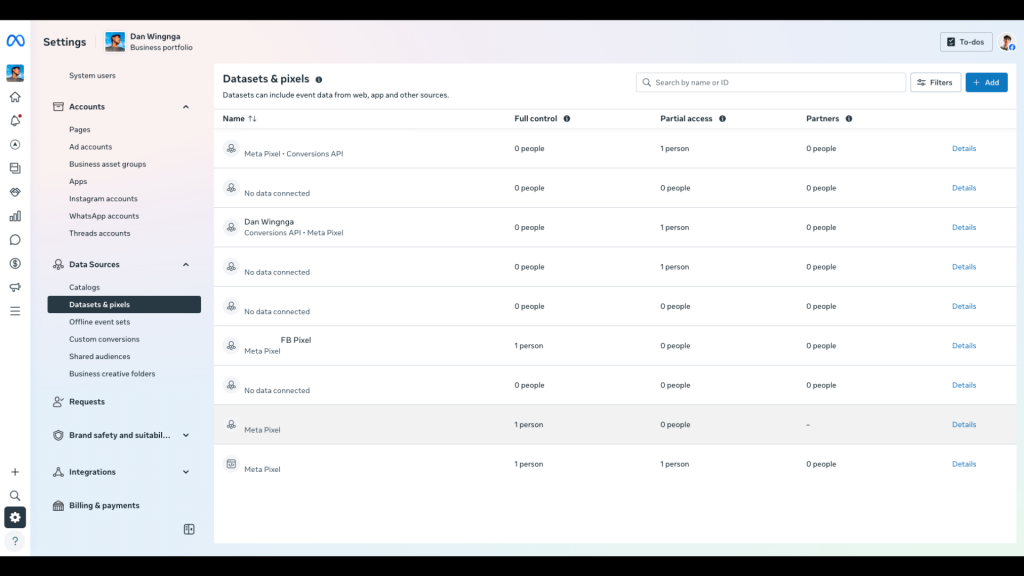
If you want to track conversions, retarget visitors, and improve ad performance, you should set up your Meta Pixel as early as possible.
To do that:
- Go to Data Sources
- Select Pixels
- Click Add
- Name your pixel
- Enter your website URL
- Install it on your website
If you’re using platforms like Shopify, WordPress, or GoHighLevel, pixel setup is usually easier because Meta often provides direct integration options.
Why this matters:
Without a pixel, Meta has less data to optimize your campaigns, and you’ll struggle with tracking purchases, leads, or key actions.
Common Mistakes to Avoid When Creating a Meta Business Portfolio
This is where a lot of beginners get stuck.
Here are the most common mistakes I see:
1. Using the wrong personal Facebook profile
If you use an old, restricted, or inactive profile, it can create access issues later.
2. Creating multiple unnecessary business portfolios
One clean setup is usually better than several messy ones.
3. Not connecting the Facebook Page properly
If the page isn’t owned by the correct business portfolio, permissions can get messy fast.
4. Forgetting to connect Instagram
Then later they wonder why their Instagram ads or placements are limited.
5. Creating the ad account with the wrong currency or time zone
This can be a huge headache because those settings are often permanent.
6. Sharing personal logins instead of granting access
This is risky, unprofessional, and can cause security problems.
7. Skipping pixel setup
Then they launch ads with weak tracking and no clear conversion data.
8. Giving everyone admin access
Only assign admin rights when truly necessary.
A clean setup now saves you from expensive problems later.
Final Meta Business Portfolio Setup Checklist
Before you launch your first campaign, make sure you have all of this in place:
- Meta Business Portfolio created
- Business email verified
- Facebook Page connected
- Instagram account connected
- Ad account created
- Correct time zone and currency selected
- Payment method added
- Meta Pixel created
- Pixel installed on your website
- Team or partner access assigned properly
- Permissions checked
- Business assets organized inside one system
If all of these are done, you’re in a much better position to launch ads smoothly.
Do You Need a Meta Business Portfolio If You’re Just Starting Out?
Yes — especially if you’re serious about using Meta ads for growth.
Even if you’re a:
- coach
- Insurance agent
- ecommerce brand
- local business owner
- course creator
- service provider
…you still want your Meta setup done correctly from day one.
A lot of businesses start running ads too fast without fixing the backend.
That usually leads to:
- account confusion
- missing access
- weak tracking
- ad delivery issues
- pixel problems
- messy handoffs when hiring help
If you want to grow without chaos, start with the right structure.
Creating a Meta Business Portfolio is one of the most important first steps before running Facebook and Instagram ads.
It might seem like a small technical setup, but it affects everything that comes after:
- your ad account access
- your page ownership
- your Instagram connection
- your pixel tracking
- your team permissions
- your ability to scale without issues
If you get this part right, running ads becomes much easier.
If you skip it or set it up incorrectly, it can create frustrating problems later that slow down your results.
So if you’re just getting started, don’t rush the ad spend.
Build the foundation first.
Need Help Setting Up Your Meta Business Portfolio the Right Way?
If you want help setting up your:
- Meta Business Portfolio
- Ad Account
- Facebook Page
- Instagram connection
- Meta Pixel
- conversion-ready ad system
…I can help you make sure everything is built the right way before you launch.
A clean setup saves time, avoids costly mistakes, and gives your ads the best chance to perform.
If you want expert help with your Meta Ads setup and strategy, feel free to reach out through my contact page or book a free strategy call.