
If you want to run Facebook and Instagram ads the right way, one of the first things you need inside your Meta Business Portfolio is your Facebook Page.
Your Facebook Page is more than just a public business profile. It plays an important role in your overall Meta setup because it helps connect your business identity, ad activity, permissions, and brand presence inside Meta’s system.
The problem is, many business owners get confused about the difference between:
- adding an existing Facebook Page
- requesting access to a Page
- creating a new Facebook Page
That confusion can lead to ownership issues, permission problems, and messy business setups later.
In this guide, I’ll walk you through how to add and create a Facebook Page in Meta Business Portfolio step by step, explain the difference between each option, and help you avoid the most common mistakes before you start running ads.
What Is a Facebook Page in Meta Business Portfolio?
A Facebook Page is your business’s public presence on Facebook.
Inside Meta Business Portfolio, your Page becomes one of your core business assets, alongside your:
- Instagram account
- ad account
- Meta Pixel
- users and partners
- billing and settings
Your Facebook Page helps Meta connect your business identity to your ad system.
This matters because your Page is often used for:
- ad identity
- brand visibility
- credibility
- Page management
- messaging and customer communication
- connecting business assets under one system
Think of your Facebook Page as one of the main building blocks of your Meta Business Portfolio.
Why Your Facebook Page Setup Matters
A lot of people treat their Facebook Page like a simple social media profile.
But inside Meta Business Portfolio, it matters much more than that.
Why it matters:
- Your ads may run under your Facebook Page identity
- It helps establish ownership and credibility
- It connects to your overall business setup
- It allows you to manage permissions professionally
- It helps avoid confusion when working with teams or agencies
If your Page is under the wrong account, not properly connected, or duplicated, it can create problems later.
That’s why you want to set it up correctly from the beginning.
Before You Add or Create a Facebook Page
Before you begin, make sure you already have:
- a Meta Business Portfolio
- access to the correct personal Facebook profile
- your business name
- clarity on whether you need to:
- add an existing Page
- request access to a Page
- create a new Page
- any basic brand details you want to use for the Page
This will make the setup process smoother.
How to Add and Create a Facebook Page in Meta Business Portfolio
There are 3 main options when working with Pages inside Meta Business Portfolio:
- Add a Page
- Request access to a Page
- Create a new Page
Each option is different.
Let’s break them down clearly.
Step 1: Go to Meta Business Settings
Start by going to:
business.facebook.com
Log in using your personal Facebook account.
Then open:
- Meta Business Suite
- Business Settings
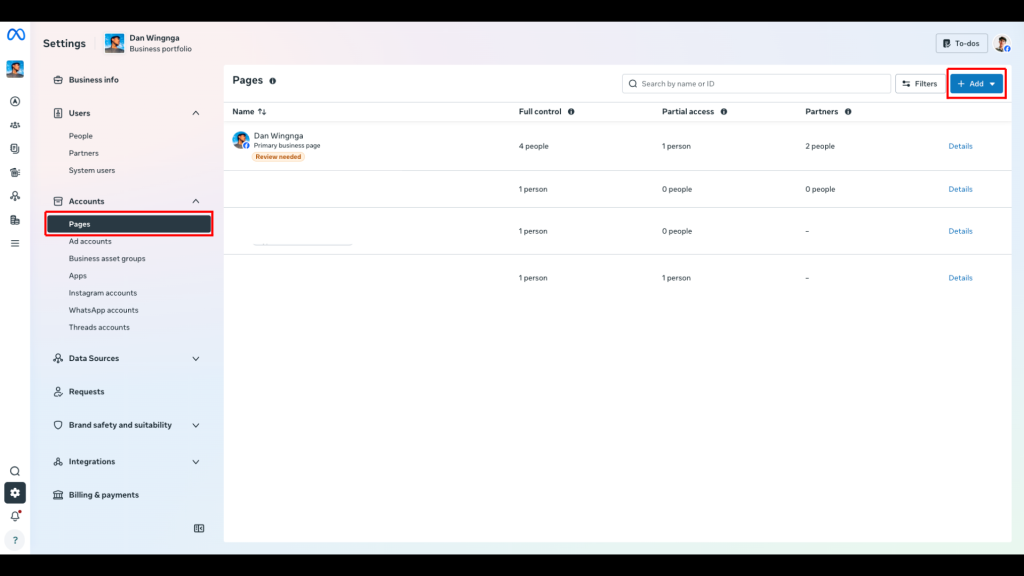
Inside Business Settings, go to:
- Accounts
- then click Pages
This is where you manage Facebook Pages inside your Meta Business Portfolio.
Step 2: Click “Add” in the Pages Section
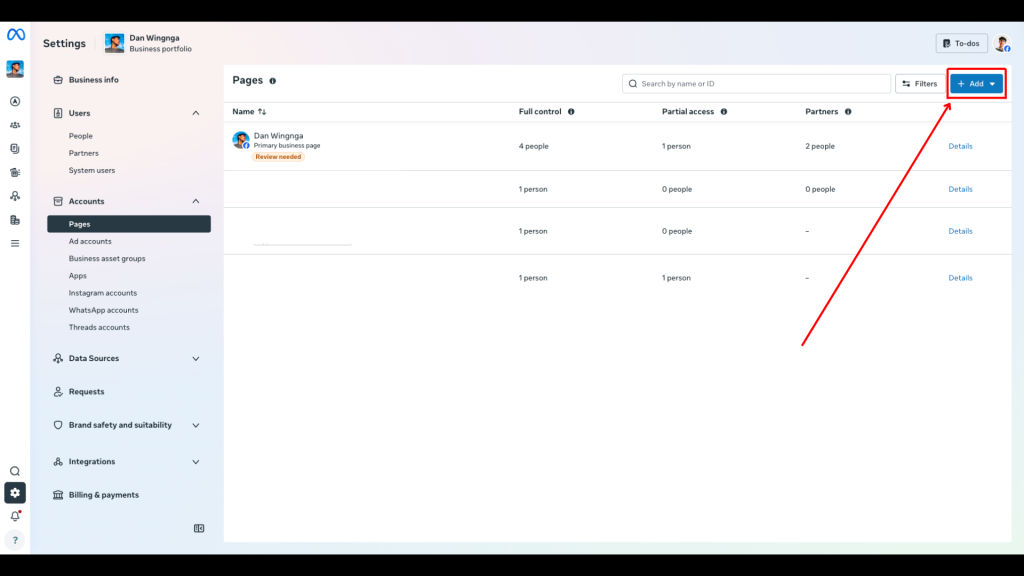
Inside the Pages section, click the Add button.
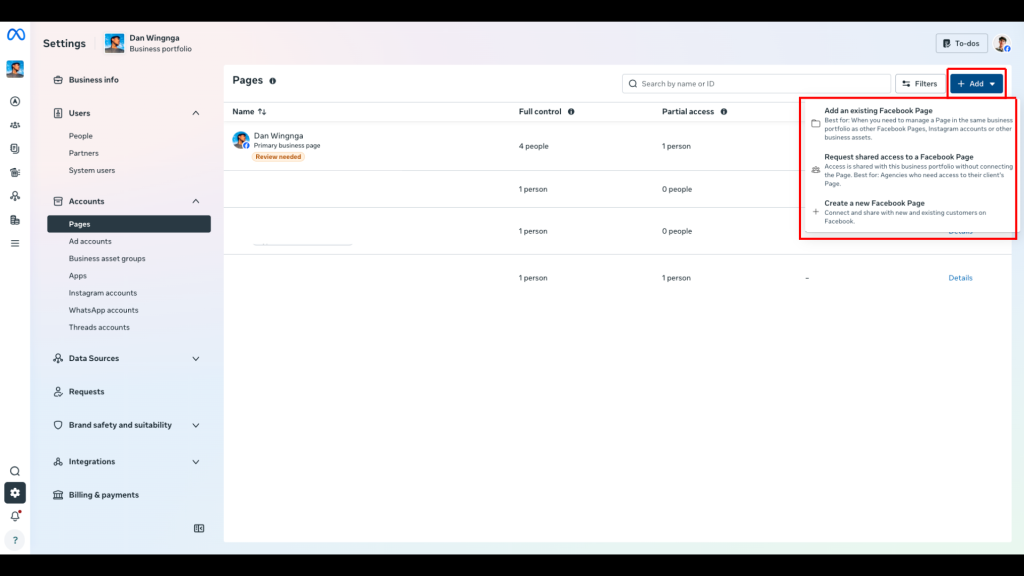
Meta will usually show you 3 options:
- Add a Page
- Request access to a Page
- Create a new Page
This is where many people get confused, so here’s the simple version.
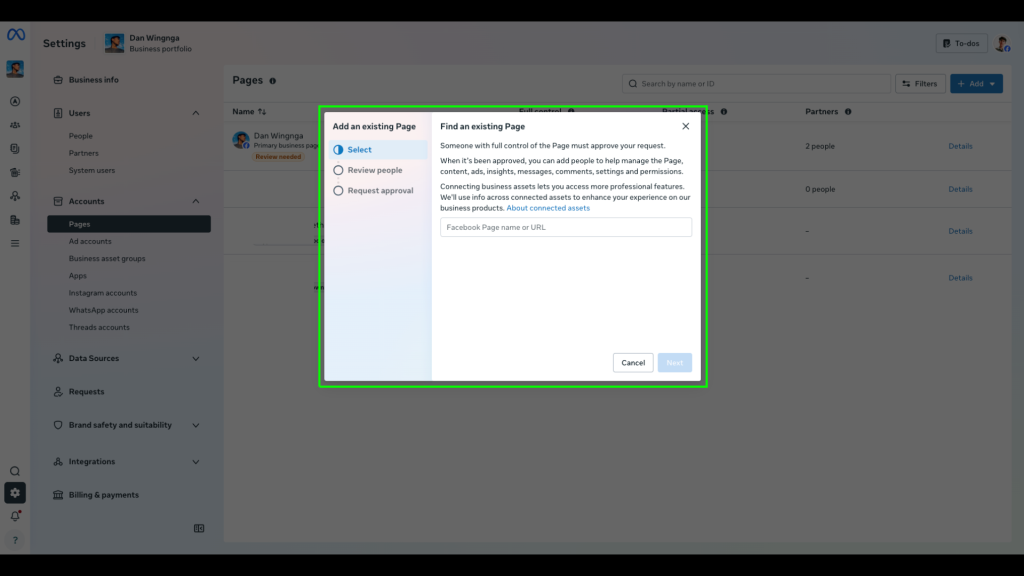
Option 1: Add a Page
Use this option if:
- the Facebook Page already belongs to you
- you are the owner or rightful controller of the Page
- you want to connect it to your Meta Business Portfolio
How it works:
When you choose Add a Page, you’re telling Meta:
“This Page is mine, and I want it connected to this business.”
Use this if:
- it’s your current business Page
- you already manage it
- it belongs to your business
- you want it officially connected to your Business Portfolio
Important:
This option is typically for Pages you own.
Common mistake:
Trying to add a client’s Page or another business’s Page using Add a Page.
If it’s not your Page, you probably need Request Access instead.
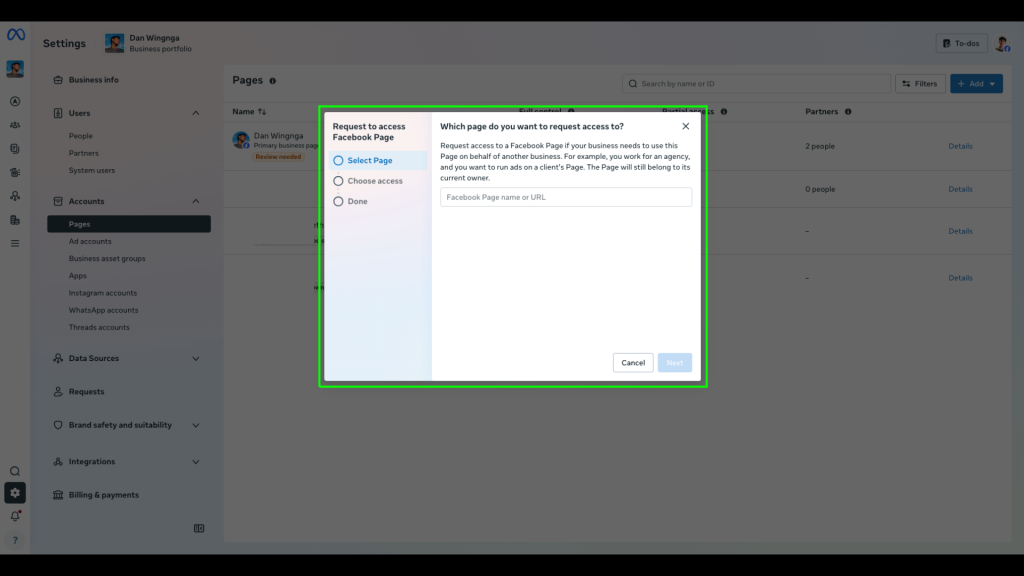
Option 2: Request Access to a Page
Use this option if:
- the Page belongs to someone else
- you are working with a client
- you are a freelancer, agency, or media buyer
- you need permission to manage or use their Page without owning it
How it works:
When you choose Request access to a Page, Meta sends a request to the Page owner so they can approve access.
This is the proper professional setup for client work.
Use this if:
- you’re helping manage a client’s ads
- you need access to a Page you do not own
- the Page is already active under another business
Best practice:
Never ask clients for personal Facebook login details.
Always request access through Meta Business Settings.
Common mistake:
Using the wrong option and creating confusion over who owns the Page
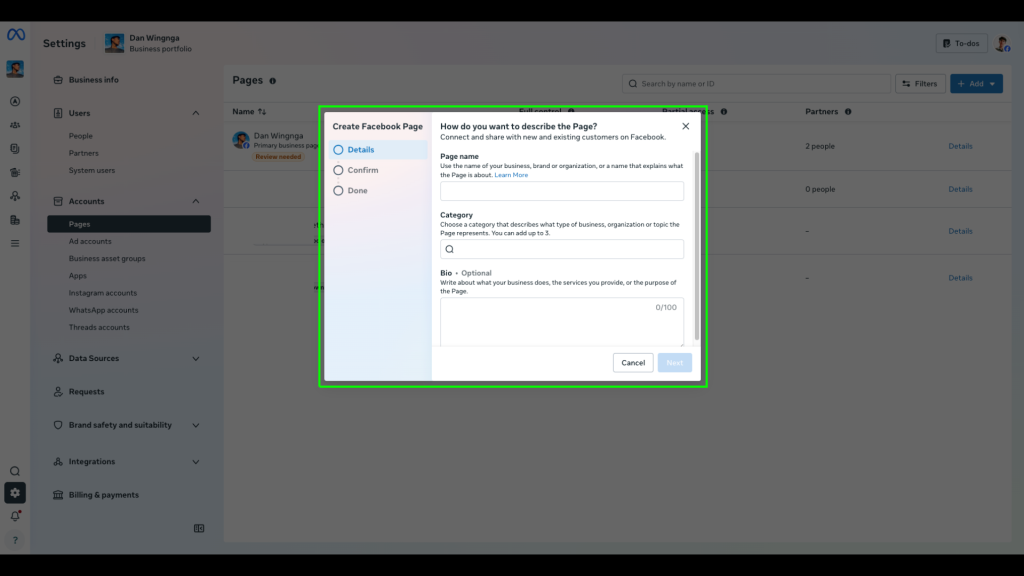
Option 3: Create a New Page
Use this option if:
- you don’t have a Facebook Page yet
- your business is starting from scratch
- you want a fresh, clean setup
- you need a dedicated Page for your business
For many beginners, this is the right option.
Step 3: Choose the Right Option for Your Situation
Before clicking anything, ask yourself:
Do I already own the Page?
- Yes → Add a Page
Does someone else own the Page?
- Yes → Request Access
Do I need a brand new Page?
- Yes → Create a New Page
That one decision can save you a lot of problems later.
Step 4: If You’re Adding an Existing Page
If the Page already belongs to you, choose:
Add a Page
Meta may ask you to:
- enter the Page name
- search for the Page
- confirm ownership or control
Once approved, the Page will appear inside your Meta Business Portfolio.
Double-check:
- it’s the correct Page
- it’s the main active version
- it’s not a duplicate
- the right business now controls it
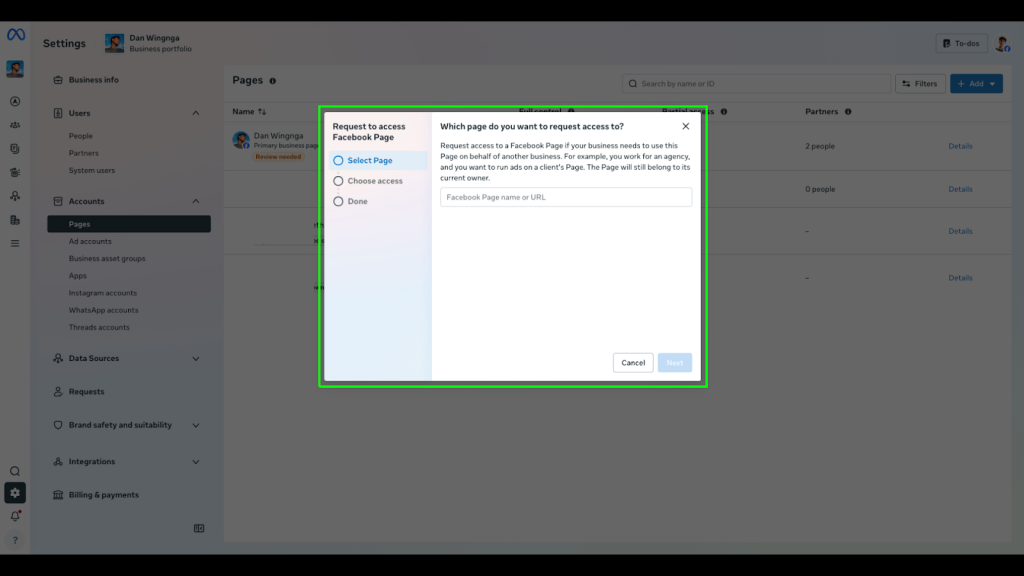
Step 5: If You’re Requesting Access to a Page
If the Page belongs to someone else, choose:
Request Access to a Page
You’ll likely need to:
- search for the Page
- enter the Page name or link
- send the request
- wait for approval from the owner
Once the owner approves, your business can access the Page based on the permission level granted.
Best practice for client work:
The client should own the Page.
You should request access instead of trying to own it yourself.
That keeps the setup clean and professional.
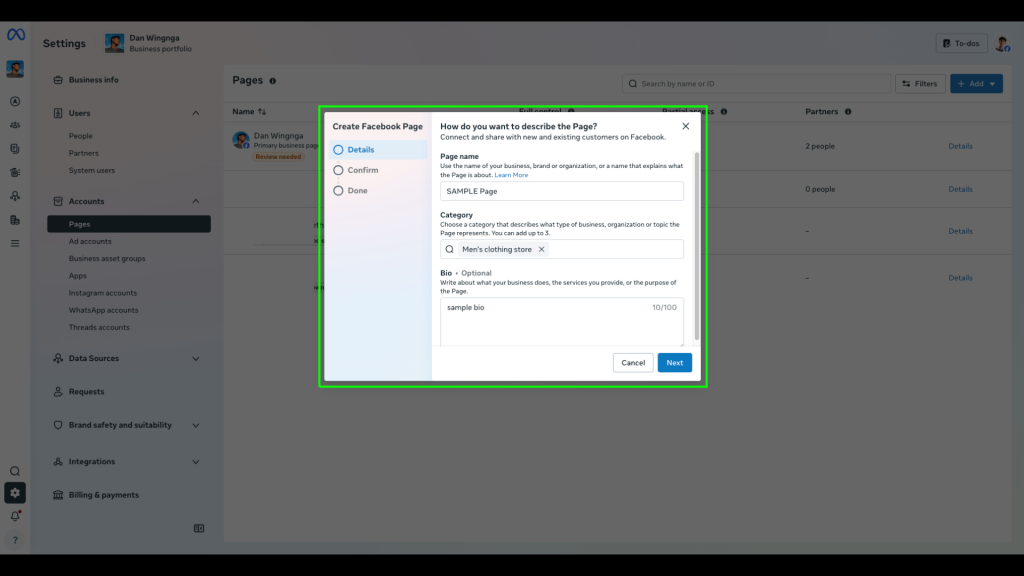
Step 6: If You’re Creating a New Page
If you’re starting fresh, choose:
Create a New Page
Meta will usually ask for:
- Page name
- category
- optional business details
- sometimes profile and brand basics later
Best practice:
Use a Page name that clearly matches your business or brand.
Examples:
- Dan Wingnga
- Dan Wingnga Meta Ads
- Brand Name Official
- Business Name
Avoid:
- vague names
- unnecessary symbols
- random extra words
- names that don’t match your brand identity
A clean Page name builds trust and consistency.
Step 7: Complete the Basic Page Setup
If you create a new Page, don’t stop after the Page is created.
You also want to complete the basics such as:
- profile photo
- cover photo
- business description
- contact details
- username if available
- category accuracy
This helps your Page look legitimate and professional from the start.
Even if you mainly want it for ads, your Page still represents your business publicly.
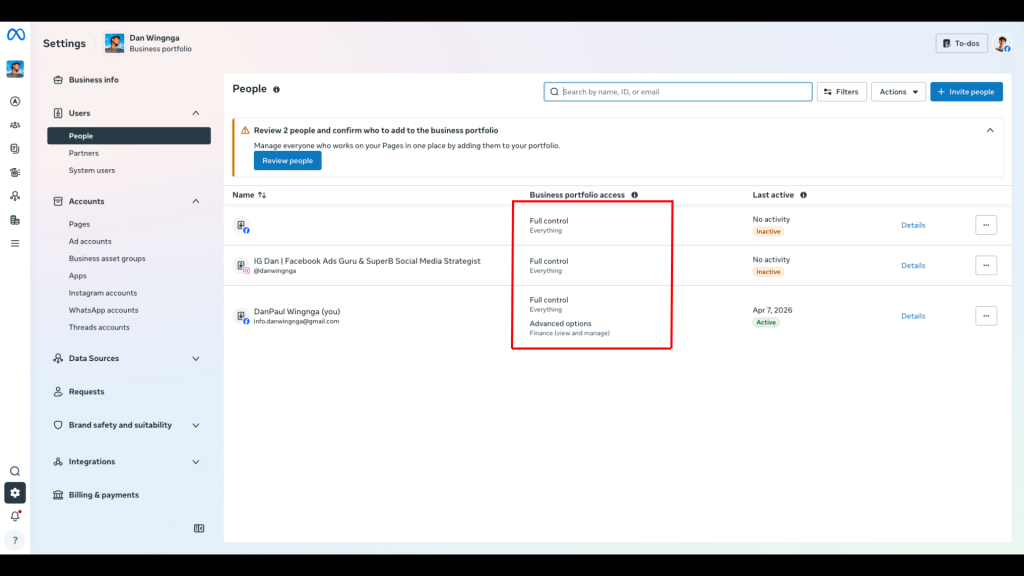
Step 8: Assign People and Permissions
Once the Page is added, requested, or created, the next step is making sure the right people have access.
Inside Meta Business Settings, you can assign access to:
- yourself
- team members
- agencies
- media buyers
- VAs
Permission levels may vary, but the main idea is simple:
Give people only the access they actually need.
Best practice:
- business owner = strongest control
- team members = only needed access
- agencies/freelancers = controlled permissions
- avoid unnecessary full control access
Important:
Do not share personal Facebook logins just to give Page access.
Use proper business permissions instead.
Step 9: Confirm the Page Is Connected Properly
Before moving on, make sure the Page:
- appears inside the correct Meta Business Portfolio
- is under the right business
- has the correct people assigned
- is not duplicated
- matches your actual business identity
- is ready to connect with your ad setup
This is your final quality check.
Common Mistakes to Avoid When Adding or Creating a Facebook Page
This is where many businesses create problems without realizing it.
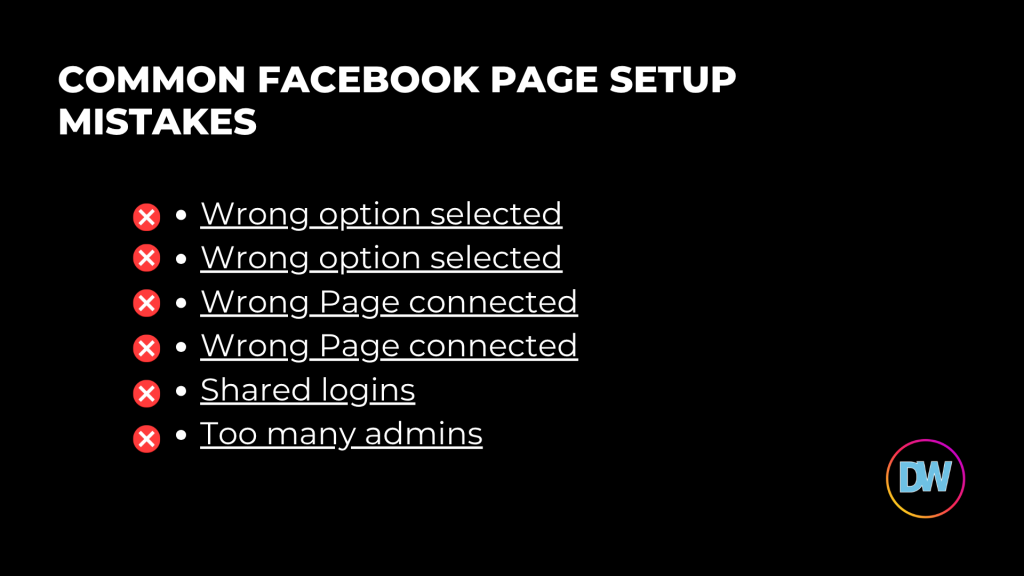
Here are the biggest mistakes:
1. Choosing the wrong option
A lot of people confuse:
- Add a Page
- Request Access
- Create New
Simple rule:
- It’s your Page → Add it
- It belongs to someone else → Request access
- You need a new one → Create it
2. Creating duplicate Pages
Sometimes businesses create a new Page without realizing an old one already exists.
That creates confusion, weak branding, and messy ownership issues.
3. Connecting the wrong Page
Always double-check that the Page name and business identity match.
4. Sharing personal logins
This is risky and unprofessional.
Always use business access and permissions.
5. Not completing the Page setup
A blank Page with no photo, no details, and no branding looks weak and untrustworthy.
6. Giving too many people full control
Only trusted decision-makers should have top-level access.
7. Taking ownership of client Pages
If it’s a client’s Page, the client should ideally own it.
You should request access.
Best Setup Rule for Client Work
If you’re working with a client, here’s the safest setup:
The client should ideally own the Facebook Page.
Then you:
- request access
- manage the work professionally
- avoid ownership confusion
- protect both sides long term
This is the cleanest setup for agencies, freelancers, and media buyers.
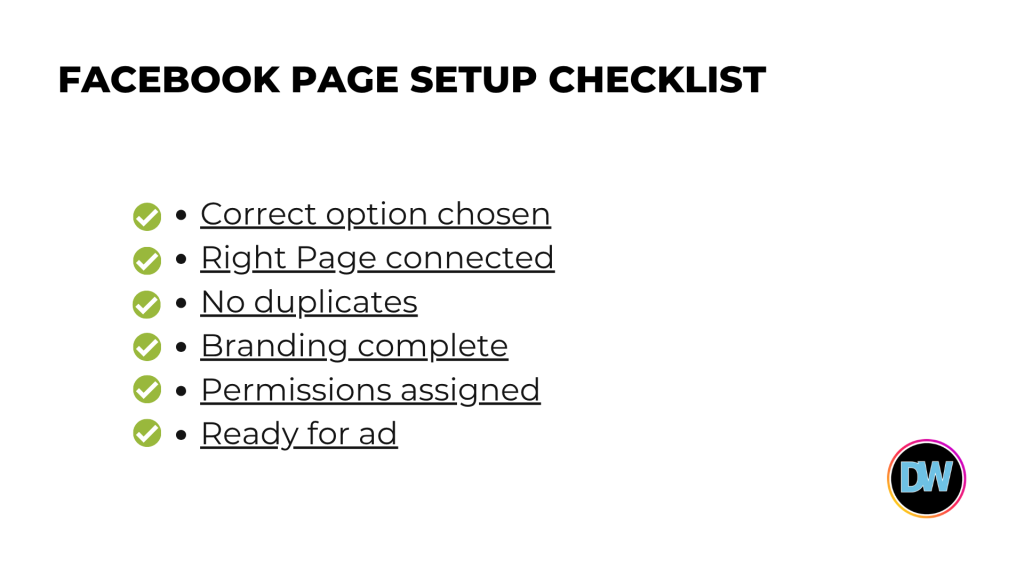
Quick Facebook Page Setup Checklist
Before moving forward with ads, make sure:
- You chose the correct option (Add / Request Access / Create New)
- The Page is inside the correct Business Portfolio
- The correct business owns or controls it
- The Page name matches your brand
- The Page is not duplicated
- Basic branding is completed
- The right people have access
- Permissions are clean and secure
- The Page is ready to connect with your ad setup
If all of this is in place, your setup is much stronger.
Final Thoughts
Your Facebook Page is one of the most important assets inside your Meta Business Portfolio.
It’s not just there for appearance.
It helps support:
- your brand identity
- your ad setup
- your permissions
- your business structure
- your overall Meta system
If you choose the wrong setup option or connect the wrong Page, you can create unnecessary problems later.
That’s why it’s important to understand the difference between:
- Add a Page
- Request Access to a Page
- Create a New Page
When done correctly, your Page becomes a strong part of your Meta foundation.
A clean business setup always makes your ads easier to manage later.
Need Help Setting Up Your Facebook Page the Right Way Inside Meta Business Portfolio?
If you want help making sure your:
- Meta Business Portfolio
- Facebook Page
- Ad Account
- Instagram connection
- permissions
- Meta Pixel
- business setup
…are all structured correctly before you run ads, I can help.
A clean backend setup saves time, prevents avoidable mistakes, and gives your campaigns a stronger foundation.
 If you want expert help with your Meta Ads setup and strategy, feel free to reach out through my contact page or book a free strategy call.